
If you own Somfy roller blinds controlled through a TaHoma hub and use Samsung SmartThings for home automation, you’ve likely run into a frustrating problem: **the blinds report their position backwards**. When your blind is fully open, SmartThings shows it as closed — and vice versa. Automations fire at the wrong time, dashboards display nonsense, and voice commands do the opposite of what you expect.
The Problem: Reversed Open/Close Position
Somfy TaHoma represents blind position using a **closure value** from 0 to 100:
| TaHoma Value | Meaning |
| 0 | Fully open |
| 100 | Fully closed |
SmartThings, on the other hand, uses `windowShadeLevel` where:
| SmartThings Level | Meaning |
| 0 | Fully closed |
| 100 | Fully open |
The default SmartThings driver for Somfy blinds does not correctly invert these values. The result? Telling SmartThings to “open the blinds” closes them. Setting a shade level of 75% (expecting mostly open) gives you mostly closed. Automations based on “blind is open” trigger when the blind is shut.
The Solution: A LAN Edge Driver Using the TaHoma Local API
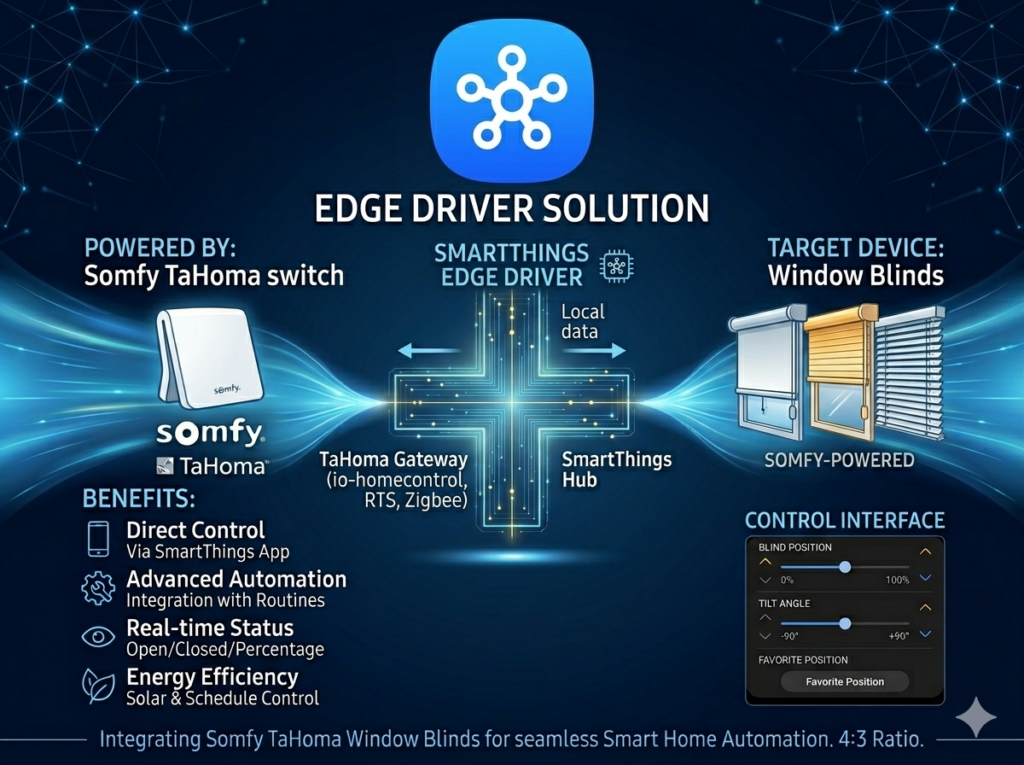
Rather than fighting the built-in driver, this custom Edge Driver bypasses the cloud entirely and talks directly to your TaHoma hub using the **Somfy TaHoma Developer Mode** local API. It:
- Correctly maps positions — TaHoma closure 0 (open) becomes SmartThings level 100 (open), and closure 100 (closed) becomes level 0 (closed).
- Runs entirely on your local network — no cloud dependency, faster response times.
- Auto-discovers your blinds— queries the TaHoma hub and creates a SmartThings device for each roller blind.
- Keeps state in sync via events — registers an event listener on the hub and polls for real-time position updates instead of hammering the API.
- Supports all Somfy roller blind types — IO blinds with position feedback, RTS blinds, Velux shutters, vertical awnings, and more.
Supported SmartThings Capabilities
| Feature | Capability |
| Open / Close / Stop | windowShade` (open, close, pause) |
| Set position (0–100%) | `windowShadeLevel` |
| Refresh current state | `refresh` |
Prerequisites
Before you begin, you’ll need:
- A Somfy TaHoma hub (TaHoma, TaHoma Switch, or Connexoon) with your blinds paired.
- A Samsung SmartThings hub on the same local network as the TaHoma hub.
- The TaHoma By Somfy mobile app on your phone or tablet.
—
## Step 1: Enable TaHoma Developer Mode
The TaHoma hub has a hidden local API that must be enabled before this driver can communicate with it. Somfy calls this **Developer Mode**.
- Open the TaHoma By Somfy app on your phone or tablet.
- Navigate to Configure the installation Access the parameters of your TaHoma box.
- Tap 7 times on the PIN of your gateway (e.g. `2001-1234-5678`) to unlock Developer Mode.
- Once Developer Mode is enabled, open the Developer Mode menu and generate a token. This Bearer token authenticates all API calls.
Important: The token can only be read and copied at the time of creation. Save it somewhere secure — you’ll need to paste it into the SmartThings driver settings.
5. Note your **TaHoma hub’s IP address** on your local network (check your router’s DHCP client list)
Step 2: Install the driver
Join my driver channel: https://bestow-regional.api.smartthings.com/invite/adMKr769drj9
Step 3: Add the TaHoma Bridge Device
- 1. In the SmartThings app, Add Device → Scan Nearby.
- 2. The driver will create a **”Somfy TaHoma Hub”** bridge device. This is a virtual device that holds your TaHoma connection settings.
- 3. Open the bridge device’s Settings and enter:
- TaHoma Gateway IP — the local IP address of your TaHoma hub (e.g. `192.168.1.50`)
- Bearer Token — the token you generated in Developer Mode
- Gateway PIN — your TaHoma gateway PIN (e.g. `2001-1234-5678`)
- Save the settings.
Step 4: Discover Your Blinds
Once the bridge credentials are saved, the driver automatically queries the TaHoma hub and creates a SmartThings device for each roller blind it discovers.
If auto-discovery doesn’t trigger, tap **Scan Nearby** again in the SmartThings app.
Some References
TaHoma Developer Mode documentation: [Somfy-Developer/Somfy-TaHoma-Developer-Mode](https://github.com/Somfy-Developer/Somfy-TaHoma-Developer-Mode)
TaHoma local API specification: [Swagger UI](https://somfy-developer.github.io/Somfy-TaHoma-Developer-Mode)
SmartThings Edge Driver documentation: [SmartThings Developer Docs](https://developer.smartthings.com/docs/devices/hub-connected/get-started)